
What an HDMI handshake is, and how to fix one that fails
Written 2026-11-15. Every claim links to the page it came from.
An HDMI handshake is the short exchange a laptop and a screen go through before any picture appears: the screen says it is connected, describes what it can show, and the two agree on copy protection. When one of those steps fails you get no signal, a black screen, an HDCP error or a picture that keeps dropping, and the fix is to find which box in the chain is breaking it.
The three steps of the handshake
- Hot plug. The screen signals that it is connected. The SCT extender guide lists a broken hot plug handshake as a cause of a black screen at startup, with the source showing "No Input".
- EDID. The screen sends a description of itself. Wikipedia describes EDID as a format "for display devices to describe their capabilities to a video source", carried over the same cable.
- HDCP. The copy protection check. Wikipedia says that before sending data, "a transmitting device checks that the receiver is authorized to receive it."
At home the laptop talks straight to the screen. At a venue, a switcher, an extender or a scaler sits in the middle, and the SCT guide describes both the EDID and the hot plug handshake breaking "between the source, extender, and display".
What a failing handshake looks like
The SCT guide lists these symptoms for EDID, hot plug and HDCP problems in an extender chain:
- The screen stays black while the extender's lights look normal.
- An "HDCP Error" message on the screen.
- A long delay before the image appears.
- A black screen at startup, with the source showing no input.
Ours looked different: a picture that appeared, held for a few seconds and dropped, again and again.
A real one, from the log
At the MongoDB Agents in Context Toronto final on 2026-11-14, a MacBook Pro was plugged into the venue's switcher by USB-C and by HDMI, in turn. The Mac's own log shows macOS found a 1080p screen named "BMD HDMI", whose maker code decodes to Blackmagic Design, and connected to it 9 times in 17 minutes. No connection lasted longer than 53 seconds. While it was up, the kernel aborted the HDCP handshake 275 times, about once a second. Several of the drops came with the venue's end pulling the hot plug line low, which is the screen's side of the cable saying it has gone away. At least one was us moving the cable to the other port.
Both ports failed the same way. That points at the venue's chain rather than at one port on the Mac, although without a reading from a known good screen it is a strong lead, not proof. The unedited log is on this site.
Fix a failing handshake, in this order
- Plug in once and wait.Unplug, wait ten seconds, and plug in once, not five times. Apple's page for its own adapter says video should appear within 10 seconds, so give it that long before you touch anything.
- Power-cycle the chain in order.For an extender chain, the SCT guide says to power-cycle "Display → RX → TX → Source": the screen first, then the far end of the extender, then the near end, and your laptop last. This is a job for the AV person.
- Swap the HDMI port for an adapter, or the other way round.The University of Toronto chemistry IT FAQ says a USB-C to HDMI dongle "cleans up the EDID" and "negotiates HDCP instead of the Mac having to deal with the AV system". It calls this a temporary solution, but it is the one you can do from the stage.
- Ask whether the chain can take HDCP.The SCT guide says "Some displays are locked to HDCP 2.2, while lower-cost extenders support only HDCP 1.4, causing the HDCP handshake to fail", and that the fix is to check the HDCP version on the source, cable and display.
- Ask for an EDID emulator.Both the Toronto FAQ and the SCT guide recommend an EDID emulator in line. The FAQ says these boxes "force a stable EDID so MacBooks don't freak out." It sits between your Mac and their chain, so it is the AV person's box.
- Reopen the app after an HDCP error from sleep.Apple says that if your Mac goes to sleep while a video is playing or paused, you might see an HDCP error, and that you should quit the app playing the video and open it again.
- Have a plan B.If the chain will not hold, present from the venue's computer and open your demo from a link.
What to say to AV
"My laptop sees your cable but never gets a picture. It looks like the handshake is failing, often the HDCP copy protection. Is there a splitter or scaler we can put in line, or a different input?"
When the cable is glitching
A picture that flickers, sparkles or shows noise can be a signal problem rather than a handshake problem. The SCT guide says HDBaseT, which carries video over network cable, "is more susceptible to interference, especially when CAT cables are installed in tight conduits or near power lines", and that 4K signals beyond the cable's limits cause flicker and dropouts. On the Mac side, Apple says a cable or adapter that does not support the display's resolution and refresh rate leaves the screen dark or at a lower setting. Try a lower resolution, then a shorter cable.
Questions
Is it the cable, my Mac or their gear?
Change one thing at a time. If two different paths, such as the HDMI port and a USB-C adapter, fail the same way on the same venue cable, the common factor is the venue. If a second laptop works and yours does not, the Toronto FAQ's point applies: it says "Windows PCs 'guess' or fallback; macOS does not."
Does a new HDMI cable fix a handshake problem?
It can, when the cable is the weak part: Apple says a cable that cannot carry the display's resolution and refresh rate leaves it dark, and the SCT guide lists the cable among the things to check for HDCP. A cable does not fix a bad EDID coming from a box further down the chain, which is why the adapter and the EDID emulator are on the list above.
stage-check does this check for you
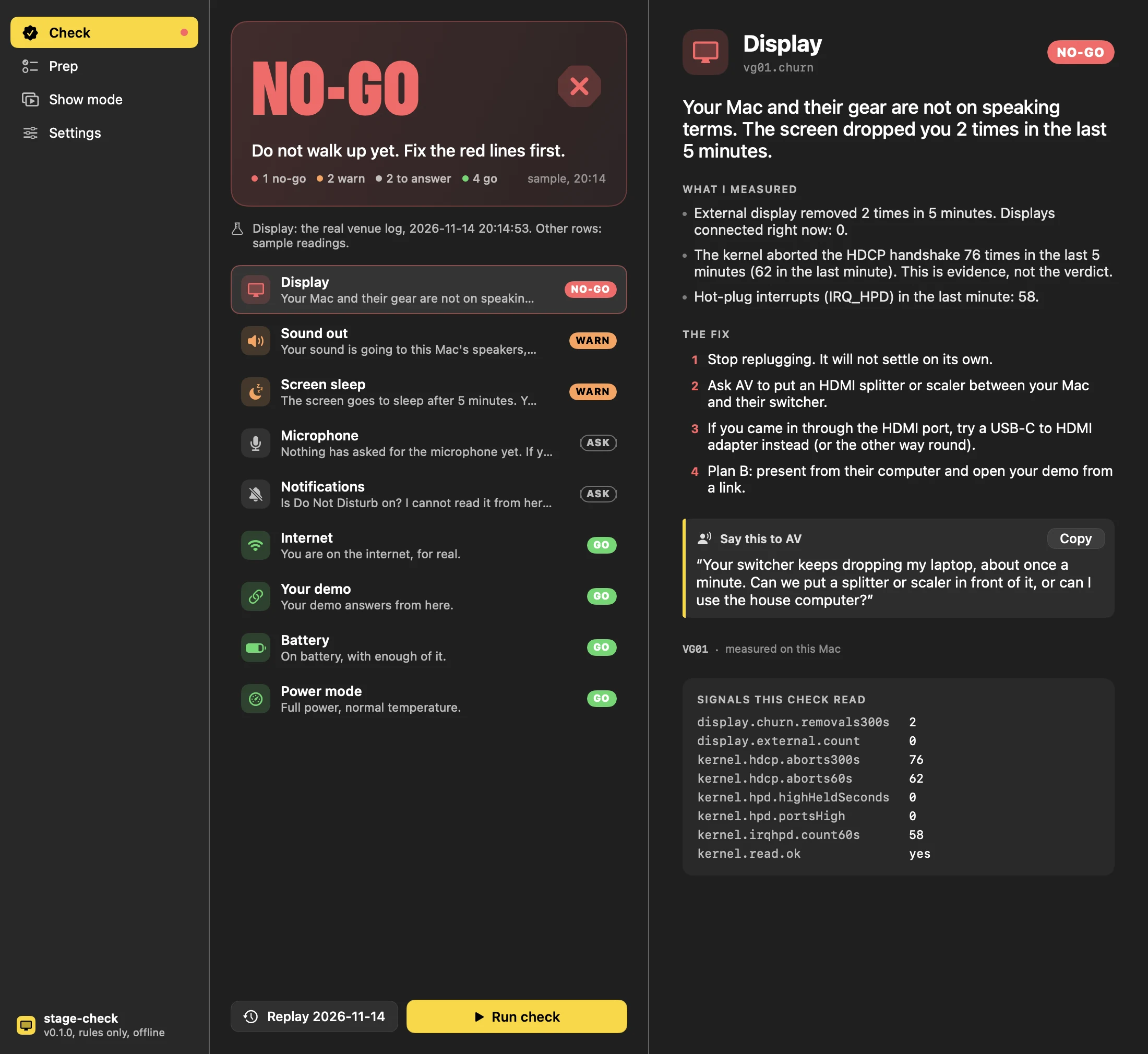
stage-check does this check for you. It reads the kernel's own hot-plug and HDCP lines from the last few minutes, so a failing handshake shows up as NO-GO with the fix and the sentence for AV, instead of as a black screen in front of the room. The Mac beta is coming soon.
Related
- External display keeps disconnecting from your Mac
- USB-C to HDMI adapter not working on your Mac
- MacBook on HDMI, and the projector says no signal
- HDCP error or black video on the projector from a Mac
- Projector keeps disconnecting from the MacBook
- Mac sees the projector but the screen stays black
- stage-check: GO or NO-GO before you walk on stage
Sources
- Wikipedia: Extended Display Identification Dataread
- Wikipedia: High-bandwidth Digital Content Protectionread
- SCT: HDBaseT extender installation and troubleshooting guideread
- University of Toronto Chemistry IT: Why some MacBook fails to display through your AV (PDF)read
- Apple Support: Connect to HDMI from your Macread
- Apple Support: About the Apple USB-C Digital AV Multiport Adapterread
- Apple Support: If your external display is dark or low resolutionread
- The venue log, 2026-11-14 (this Mac's unified log, display lines only)local
- stage-check rules: dv01.handshake and vg01.churn (
rules/copy.en.json)local
Each web source was opened and read on 2026-11-15; a saved copy is kept with the site's research. Figures about the venue night are computed from the evidence file when the site is built.