
External display keeps disconnecting from your Mac
Written 2026-11-15. Every claim links to the page it came from.
When an external display drops and comes back on its own, something in the link keeps breaking and remaking the connection: a cable, adapter or dock at your desk, or a switcher or extender at a venue. Start with the parts you own, and if it only happens on the venue's gear, stop replugging and ask AV to put a box between your Mac and theirs.
At your desk: fix it in this order
- Plug straight into the Mac.If the display goes through a dock or hub, Apple says to connect it to a port directly on your Mac. If the drops stop, the dock was the problem.
- Swap the cable.Apple says a cable or adapter that does not support the display's resolution and refresh rate leaves it dark or at a lower setting. In an Apple Community thread about a display that stopped being detected, one person wrote "I bought a Thunderbolt 4 cable from ANKER, and it works fine now."
- Try the display's HDMI-CEC setting.Apple says that if your external display turns on or off unexpectedly, you should try enabling or disabling HDMI-CEC in the display's own settings. HDMI-CEC is the feature that wakes and sleeps the display with the Mac.
- Turn off variable refresh rate on the monitor.In the same Community thread, one person wrote "Disabling VRR (Variable Refresh Rate) in the monitor's OSD settings immediately resolved the issue." That is one report, and the setting lives in the monitor's own menu, not on the Mac.
- Lower the refresh rate or resolution.Apple says you can change the resolution and choose a refresh rate in System Settings > Displays. A lower setting asks less of the cable, the adapter and the dock.
- Give a closed laptop power and a keyboard.Apple says a Mac laptop running an external display with the lid closed needs to be connected to power and using an external keyboard and mouse.
- Update macOS and the display's firmware.Apple says macOS updates carry firmware for Apple displays, and that for other displays you should get the latest firmware from the maker.
- Power-cycle the monitor.One more report from that thread: "Turns out what fixed it was power cycling my monitor." Unplug it from the wall, wait, and plug it back in.
At a venue: stop replugging
At a venue, the display is the projector at the end of their chain, and the drop can come from their side. That is what happened to us. At the MongoDB Agents in Context Toronto final on 2026-11-14, a MacBook Pro connected to the venue's screen 9 times in 17 minutes, by USB-C and by HDMI, and no connection lasted longer than 53 seconds. While it was up, the kernel aborted the HDCP handshake 275 times. Several of the drops came with the venue's end pulling the hot plug line low, which is the screen's side of the cable saying it has gone away. At least one was us moving the cable to the other port. The unedited log is on this site.
Switching ports did not change any of that for us: both failed the same way. These steps can:
- Ask AV for a splitter or scaler in line.A box between your Mac and their switcher means their gear talks to the box, not to your Mac. The University of Toronto chemistry IT FAQ recommends an EDID emulator in the same place, which it says forces "a stable EDID".
- Switch the path.If you came in through the HDMI port, try a USB-C to HDMI adapter, or the other way round. The Toronto FAQ says the adapter "negotiates HDCP instead of the Mac having to deal with the AV system".
- Use plan B.Present from the venue's computer and open your demo from a link. Have the link ready on your phone.
If the screen blinked only once, stage-check already treats that as a warning, because it is how ours started. Try a different adapter or go straight into their HDMI now, and ask for the splitter if it blinks again.
What to say to AV
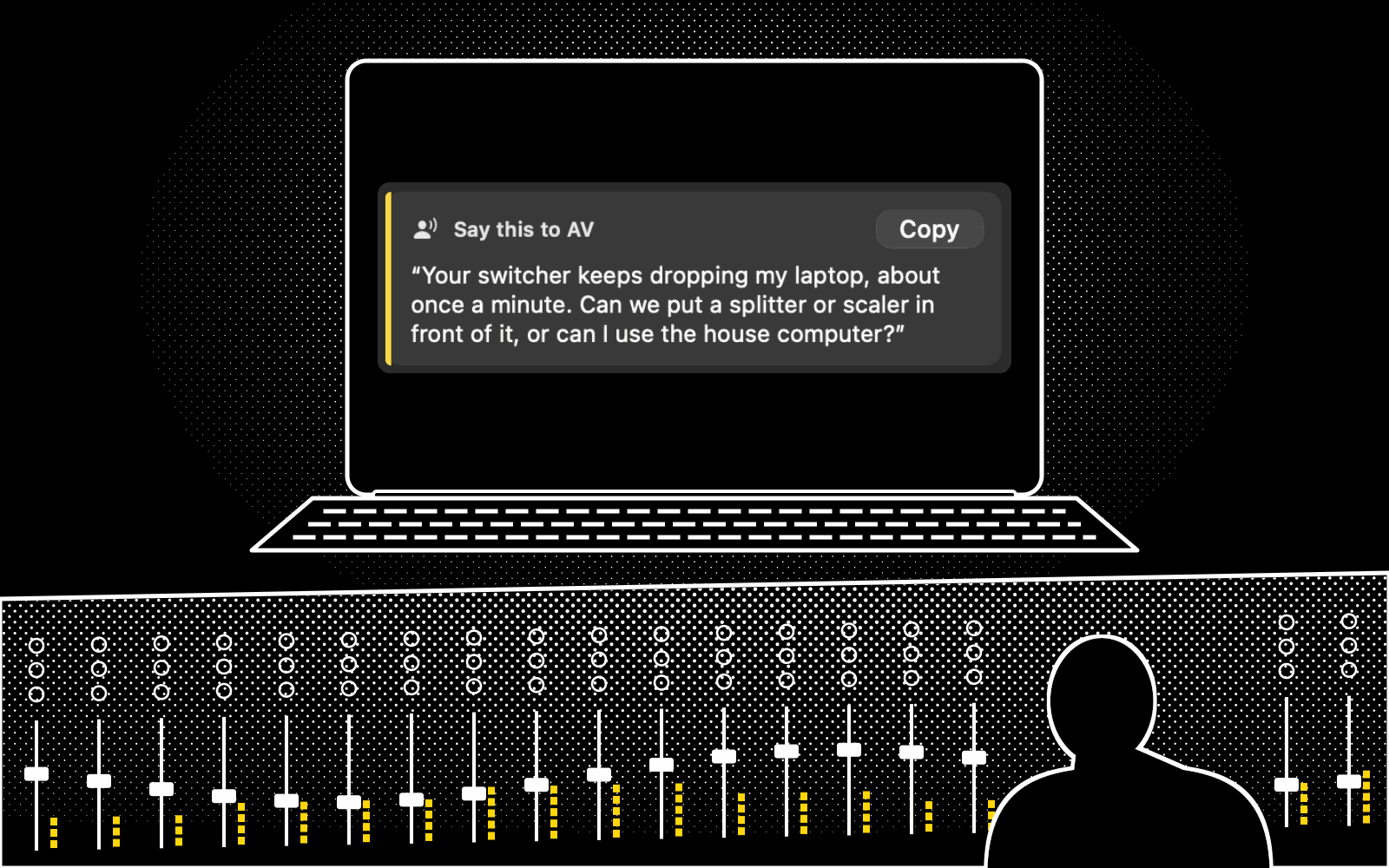
"Your switcher keeps dropping my laptop, about once a minute. Can we put a splitter or scaler in front of it, or can I use the house computer?"
The handshake guide explains what the switcher and your Mac are failing to agree on, if AV asks.
Questions
Why does my monitor keep turning off and on by itself?
If it is connected by HDMI, Apple points at HDMI-CEC, the feature that sleeps and wakes the display with the Mac, and says to try turning it on or off in the display's settings. If that is not it, work through the desk steps above, starting with the dock and the cable.
Is it my Mac or their gear?
Change one thing at a time. If the drops follow your cable or dock to another screen, they are yours. If two different paths from your Mac, such as the HDMI port and a USB-C adapter, drop the same way on the same venue cable, the common factor is the venue. Our log above is that second case, although without a reading from a known good screen it is a strong lead rather than proof.
stage-check does this check for you
stage-check does this check for you. It counts how many times the screen dropped in the last five minutes and reads the kernel's hot-plug and HDCP lines, so a link that keeps letting go shows up as NO-GO, with the fix and the sentence for AV, before you walk up rather than halfway through your second slide. The Mac beta is coming soon.
Related
- What an HDMI handshake is, and how to fix one that fails
- Mac not detecting your external monitor
- USB-C to HDMI adapter not working on your Mac
- Projector keeps disconnecting from the MacBook
- HDCP error or black video on the projector from a Mac
- stage-check: GO or NO-GO before you walk on stage
Sources
- Apple Support: If your external display is dark or low resolutionread
- Apple Support: Connect to HDMI from your Macread
- Apple Support: Connect displays to your Macread
- Apple Community: External display not detected after macOS Tahoe update via HDMIread
- University of Toronto Chemistry IT: Why some MacBook fails to display through your AV (PDF)read
- The venue log, 2026-11-14 (this Mac's unified log, display lines only)local
- stage-check rules: vg01.churn and dv09.blink (
rules/copy.en.json)local
Each web source was opened and read on 2026-11-15; a saved copy is kept with the site's research. Figures about the venue night are computed from the evidence file when the site is built.