
USB-C to HDMI adapter not working on your Mac
Written 2026-11-15. Every claim links to the page it came from.
A USB-C to HDMI adapter shows nothing when the port it is in does not carry video, when it cannot carry the resolution the screen asks for, or when the Mac has not been allowed to use it. Apple documents all three, and the steps below go from the ten-second check to the one that needs the venue.
A working charge light proves nothing about the picture. Apple says accessories "can still charge your Mac (or themselves)" even when you have told the Mac not to allow them, so an adapter can pass power all day and never show a pixel.
Fix it in this order
- Plug the cables into the adapter first.Apple's page for its own adapter says that if you have issues, unplug the adapter, connect all the cables to it, and only then plug the adapter into the Mac.
- Wait ten seconds.The same page says video should appear within 10 seconds of connecting a display, TV or projector, so give it the full ten before you touch anything.
- Allow the accessory.On a Mac laptop with Apple silicon, a new adapter or display can trigger a question asking you to allow it. If the Mac was locked, unlock it. If you clicked Don't Allow, Apple says the Mac will not recognise the accessory and will ask again the next time you connect it.
- Use a port that drives a display.Apple's port guide has the exceptions. On a MacBook Neo, the display goes on the leftmost USB-C port when you face the left side of the Mac. On a Mac mini from 2024 or later, use a port with the Thunderbolt symbol on the back, not the USB-C ports on the front. On a four-port iMac, use a port with the Thunderbolt symbol.
- Plug straight into the Mac.If the adapter hangs off a hub or a dock, Apple says to connect the display to a port directly on the Mac.
- Check it is a video adapter.Apple's adapter guide says an adapter used for a display "must be compliant with DisplayPort Alt Mode, Thunderbolt 3, or Thunderbolt 4." If the box or the listing names none of the three, pick one that does.
- Check what resolution the adapter can carry.Apple says a display stays dark, or drops to a lower setting, if the adapter does not support its resolution and refresh rate. Apple's own adapter comes in two models with different limits, shown below, and Apple also says adapters are not supported for 8K at 60Hz or 4K at 240Hz. If the screen is asking for more than your adapter can carry, set a lower resolution in System Settings > Displays once it appears.
- Try the other path.If your Mac has an HDMI port, try it instead. If it does not, try a different adapter. stage-check's rule for a venue that keeps dropping you says it plainly: if you came in through the HDMI port, try a USB-C to HDMI adapter instead, or the other way round.
| Apple USB-C Digital AV Multiport Adapter | What Apple lists for its HDMI port | How to spot it |
|---|---|---|
| Model A2119 (newest) | 3840 x 2160 at 60Hz with the Macs Apple lists, including MacBook Air from 2020 and 14-inch MacBook Pro from 2021 | Product ID 0x1463 |
| Model A1621 | 3840 x 2160 at 30Hz, or up to 1080p at 60Hz | Product ID 0x1460 |
The model number is printed on the side of the adapter near the ports. With the adapter plugged in, you can also find the Product ID in the USB section of System Information.
When it works at home and fails at the venue
Then the adapter works with your Mac, and the question is the venue's chain. The University of Toronto chemistry IT FAQ explains why an adapter can rescue a Mac at a venue: most USB-C to HDMI dongles contain a converter chip that "normalizes EDID and fixes timing", and "the dongle negotiates HDCP instead of the Mac having to deal with the AV system."
If the adapter and the HDMI port both fail the same way on the same venue cable, the problem is further down the chain. That is what happened to us at a hackathon final, and the handshake guide has the log and what to ask AV.
Questions
Why does my adapter charge the Mac but show no picture?
Because power and video are separate. Apple says accessories can charge even when the Mac has not allowed them to connect, and that a display adapter must support DisplayPort Alt Mode, Thunderbolt 3 or Thunderbolt 4. Charging only proves the first part.
Which USB-C to HDMI adapter should I carry?
One that you have tested with your own Mac and a screen before the day. Apple's own Multiport Adapter is "HDCP compliant", per Apple's page, and the A2119 model carries 4K at 60Hz on the Macs Apple lists. Carry it even when the venue says it has HDMI, because the other path is the fix when one path fails.
My MacBook Pro has HDMI. Do I still need an adapter?
Bring one. Apple's HDMI page says MacBook Pro models from 2021 or later carry up to 4K at 60Hz from the HDMI port. At a venue, the adapter is your second path when the HDMI port does not get along with their switcher.
stage-check does this check for you
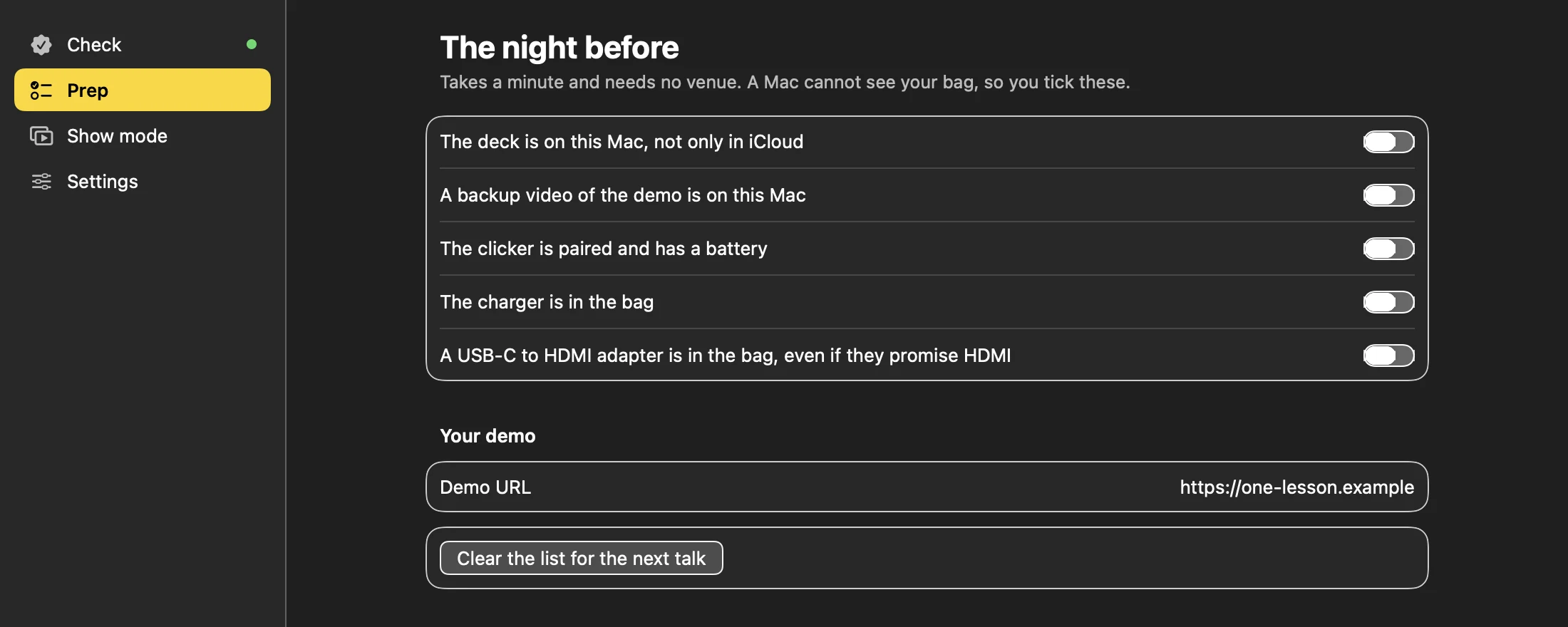
stage-check does this check for you. It tells you whether macOS sees a screen on the other end of the adapter, or only sees signs of life on the cable, and it puts the adapter on your night-before list so you have the other path in your bag. The Mac beta is coming soon.
Related
- How to connect a MacBook to a projector
- MacBook on HDMI, and the projector says no signal
- What an HDMI handshake is, and how to fix one that fails
- HDCP error or black video on the projector from a Mac
- stage-check: GO or NO-GO before you walk on stage
Sources
- Apple Support: About the Apple USB-C Digital AV Multiport Adapterread
- Apple Support: Adapters for the Thunderbolt or USB-C port on your Macread
- Apple Support: Identify the ports on your Macread
- Apple Support: If your external display is dark or low resolutionread
- Apple Support: Allow USB and other accessories to connect to your Macread
- Apple Support: Connect to HDMI from your Macread
- University of Toronto Chemistry IT: Why some MacBook fails to display through your AV (PDF)read
- stage-check rules: vg01.churn and dv01.handshake (
rules/copy.en.json)local
Each web source was opened and read on 2026-11-15; a saved copy is kept with the site's research. Figures about the venue night are computed from the evidence file when the site is built.