
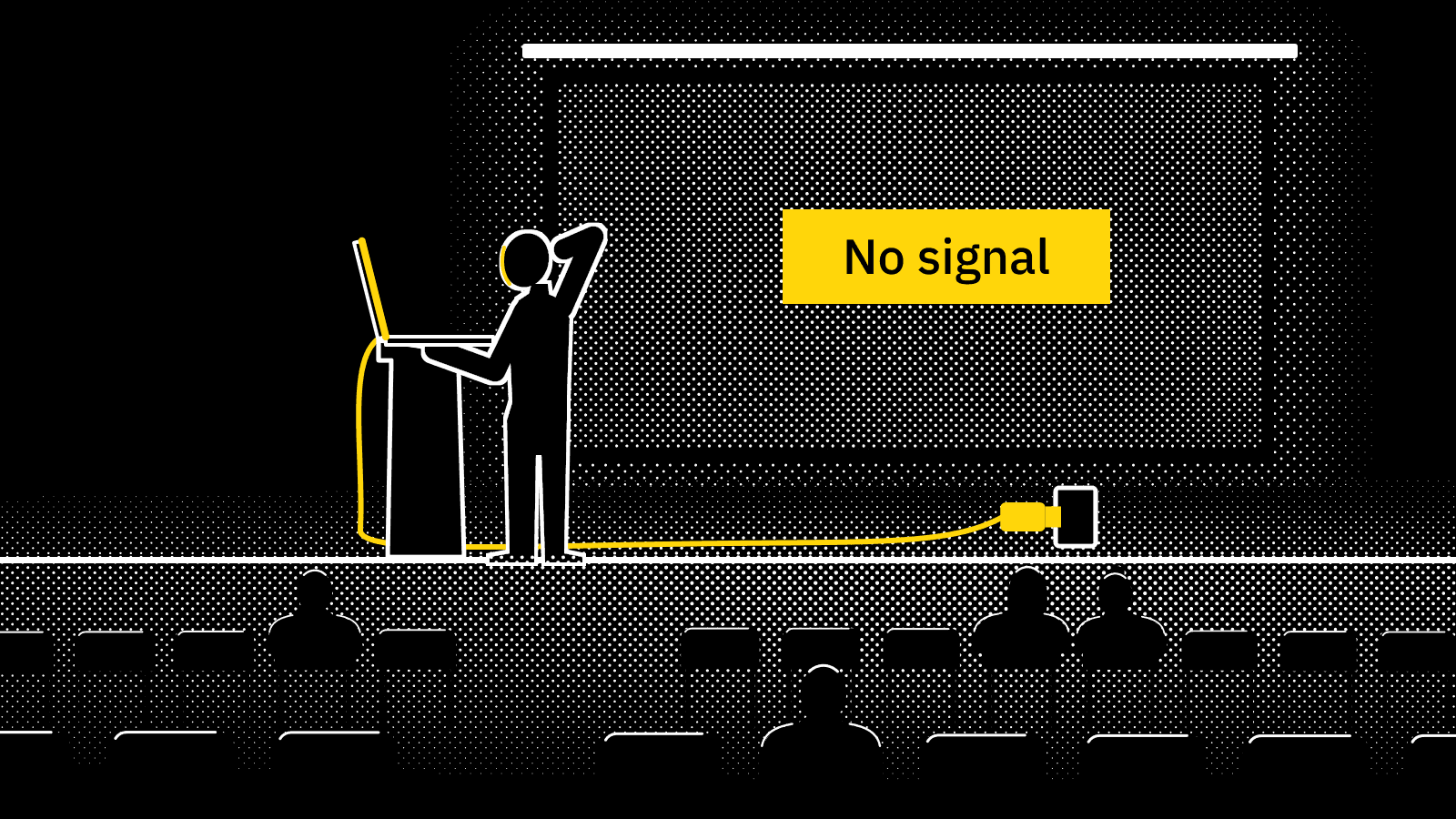
MacBook on HDMI, and the projector says no signal
Written 2026-11-15. Every claim links to the page it came from.
No signal means the projector is not getting a picture it can use from your MacBook. Check three things in this order: the projector's input, then your cable or adapter, then the venue's gear in between. The first two you can fix yourself; the third needs the AV person.
Before you start, find out which kind of no signal you have. Open System Settings > Displays. If only your built-in screen is listed, the Mac has not detected the projector at all, and the steps below are for you. If the projector is listed but shows nothing, the Mac sees it and the picture is not arriving, which has its own page.
Fix it in this order
- Check the projector's input.Make sure the projector is on and switched to the input your cable is plugged into, and that the cable is all the way in at both ends. If the projector has more than one HDMI input, the right cable on the wrong input looks exactly like a broken laptop.
- Unlock your Mac and allow the display.On a MacBook with Apple silicon, macOS can ask you to allow a new accessory before it connects. Apple says that if you do not allow your display to connect, it stays dark. If the Mac was locked when you plugged in, unlock it so the question can appear.
- Reseat once, then detect.Unplug the cable, wait ten seconds and plug it back in once. Then open System Settings > Displays, hold the Option key and click Detect Displays, which Apple documents for a display the Mac does not recognise. One person in an Apple Community thread wrote that Detect Displays changed nothing for them, so keep going if it does nothing for you.
- Sleep and wake the Mac.Close the lid for a few seconds and open it again. Apple lists this as a way to make the Mac look for the display again.
- Switch the path.If you are in the MacBook's own HDMI port, try a USB-C to HDMI adapter. If you are on an adapter, try the HDMI port. The University of Toronto chemistry IT FAQ calls a USB-C to HDMI adapter the temporary solution for a venue that refuses a Mac, because "the dongle negotiates HDCP instead of the Mac having to deal with the AV system".
- Plug the cables into the adapter first.For Apple's USB-C Digital AV Multiport Adapter, Apple says to unplug it, connect every cable to the adapter, and only then plug the adapter into the Mac. The same page says video should appear within 10 seconds.
- Take the hub out.If you go through a dock or hub, plug the display cable straight into a port on the Mac instead. Apple lists this for a display that stays dark.
- Swap the cable.Try a different, short cable. In the Apple Community thread, one person whose display stopped being detected wrote "I bought a Thunderbolt 4 cable from ANKER, and it works fine now." That is one report, but a cable is the cheapest part to rule out.
- Power-cycle the projector.Turn the projector off and on again with the Mac connected. Another person in that thread wrote that power cycling their monitor is what fixed it.
- Ask AV about the chain.If nothing so far has worked, the problem is probably in the boxes between the wall plate and the projector: a switcher, an extender or a scaler. The Toronto FAQ says MacBooks, "especially M1/M2/M3 models", are "far less forgiving than Windows PCs" about the display's description of itself (EDID) and copy protection (HDCP), and recommends an EDID emulator between the Mac and the AV chain. That box lives with the AV person, not in your bag.
What to say to AV
If the Mac does not see anything at all, say: "My laptop is not seeing your input at all. Which input is this cable on, and is it switched to it?"
If the Mac sees something on the cable but a picture never arrives, say: "My laptop sees your cable but never gets a picture. It looks like the handshake is failing, often the HDCP copy protection. Is there a splitter or scaler we can put in line, or a different input?" Both lines come straight from stage-check's rules, and the handshake guide explains what they mean.
Why the laptop before you worked
A Windows laptop working on the same cable a minute ago does not prove the cable is fine for your Mac. The Toronto FAQ puts it plainly: "Windows PCs 'guess' or fallback; macOS does not." It also says an old or non-standard scaler can return "bad or incomplete EDID", and the Mac then refuses the signal.
When the picture arrives but looks wrong
If the projector shows your desktop but cuts off the edges, Apple says to fix overscan or underscan on the TV or projector itself. If the picture appears and then drops again, that is a different problem with a different fix: see external display keeps disconnecting.
Questions
Which MacBooks have an HDMI port?
Apple's port guide lists the 14-inch and 16-inch MacBook Pro from 2021 or later, and the 13-inch and 15-inch MacBook Pro from 2012 through 2015. MacBook Air is not on that list, so it needs a USB-C to HDMI adapter. The projector connection guide has the full table.
My MacBook says nothing is connected. Is the port broken?
Not necessarily. macOS lists a display only once it has detected one, and a cable that is in but not detected points at the input, the cable or adapter, or a box in the venue's chain first. Try the other path from step 5 before you blame the port: if both the HDMI port and an adapter fail the same way on the same venue cable, the common factor is the venue.
stage-check does this check for you
stage-check does this check for you. It counts the screens macOS sees against the number you said to expect, and when the cable shows signs of life but no screen arrives, it says the handshake is failing, so you know which half of this list you are on before you walk up. The Mac beta is coming soon.
Related
- Mac not detecting your external monitor
- USB-C to HDMI adapter not working on your Mac
- What an HDMI handshake is, and how to fix one that fails
- Mac sees the projector but the screen stays black
- HDCP error or black video on the projector from a Mac
- stage-check: GO or NO-GO before you walk on stage
Sources
- Apple Support: If your external display is dark or low resolutionread
- Apple Support: Allow USB and other accessories to connect to your Macread
- Apple Support: Connect one or more external displays with your Macread
- Apple Support: Connect to HDMI from your Macread
- Apple Support: About the Apple USB-C Digital AV Multiport Adapterread
- Apple Support: Identify the ports on your Macread
- Apple Community: External display not detected after macOS Tahoe update via HDMIread
- University of Toronto Chemistry IT: Why some MacBook fails to display through your AV (PDF)read
- stage-check rules: dv01.missing and dv01.handshake (
rules/copy.en.json)local
Each web source was opened and read on 2026-11-15; a saved copy is kept with the site's research. Figures about the venue night are computed from the evidence file when the site is built.