
MacBook presentation mode: the settings that make one
Written 2026-11-15. Every claim links to the page it came from.
When people search for MacBook presentation mode, they want four things: nothing popping up on the big screen, a screen that does not go to sleep mid-talk, slides on the projector with notes on the laptop, and sound in the room. macOS keeps those in four different places, so a presentation mode on a Mac is four settings you change before you walk up and change back after.
Apple's own notifications page puts the reason in one line: "you might want to pause notifications while you're giving a presentation." The steps below do that and the other three.
Set it up in this order
- Turn on Do Not Disturb.Open Control Center from the menu bar and turn on the Do Not Disturb Focus. Apple's Focus page gives this as the quick way to silence all notifications.
- Pause notifications while mirroring.Open System Settings > Notifications and find "Show Notifications: when mirroring or sharing the display". Apple's page gives two choices, Notifications Off and Allow Notifications. Choose Notifications Off. Apple's wording covers mirroring and sharing the display, so if you extend your desktop instead of mirroring it, step 1 is the one that keeps the projector clean.
- Keep the screen awake.Open System Settings > Lock Screen and set "Turn display off on power adapter when inactive" to a time longer than your talk, and do the same for "Turn display off on battery when inactive". Apple's sleep page lists both menus. If you would rather not touch settings, run
caffeinate -din Terminal for the length of the talk: its manual page says the-dflag creates an assertion "to prevent the display from sleeping", and it lasts until you quit it. - Extend if you use notes, mirror if you do not.In Keynote, the audience sees your presenter notes if you mirror. Apple's Keynote page says to turn mirroring off: in System Settings > Displays, make sure the display thumbnails are not stacked, and if they are, hold Option and drag the top one to the side. Then choose Play > In Fullscreen. If the slides and the presenter display land on the wrong screens, press X until they swap.
- Send the sound to the room.Open System Settings > Sound > Output and pick the projector or the venue's audio device from the list of output devices. Apple's HDMI page says to make sure your HDMI device is selected there if the screen is not getting audio.
- Close the chat apps.If a chat app is open, a message can still land on screen when a notification setting was missed. Quit them, or at least check step 1 again. stage-check's rule for this one says your group chat is about to present with you.
How to exit presentation mode on a Mac
Undo the four settings in reverse. In Keynote, Apple says to press Esc to exit the presenter display and stop playing. Turn Do Not Disturb off in Control Center. Set the two display sleep menus back in System Settings > Lock Screen, or quit caffeinate with Control-C. Set mirroring back the way you like it in System Settings > Displays. The notifications setting from step 2 can stay as it is: it only applies while you mirror or share the display.
The ten-minute check before you go on
Presentation mode keeps the screen clean. It does not tell you whether the room is ready. Ten minutes before you are called, check:
- The projector shows your screen and keeps showing it for a full minute. If it drops, read the disconnecting guide.
- A sound plays through the room, not through the laptop. No sound over HDMI has the fixes.
- The Wi-Fi is on the internet and not waiting on a sign-in page. See venue Wi-Fi with no internet.
- Your demo loads from this network, not just from your phone.
- The charger is in, and the battery is not the thing you are counting on.
Questions
Does macOS turn on Do Not Disturb by itself when I present?
Set it yourself rather than rely on a default. Apple's notifications page gives you a setting for notifications while you mirror or share the display, and step 2 above sets it. Turning on Do Not Disturb yourself covers the extended desktop too.
How do I show my notes on the laptop and the slides on the projector?
Turn mirroring off so the Mac extends the desktop, then play the Keynote presentation in fullscreen. Apple says that by default the slideshow appears on the external display and the presenter display on your Mac, and that pressing X swaps them. Our page on Presenter View on the wrong screen covers PowerPoint as well.
What is the fastest way to stop the screen sleeping for one talk?
Run caffeinate -d in Terminal and leave the window open until you are done. Nothing in System Settings changes, so there is nothing to undo.
stage-check does this check for you
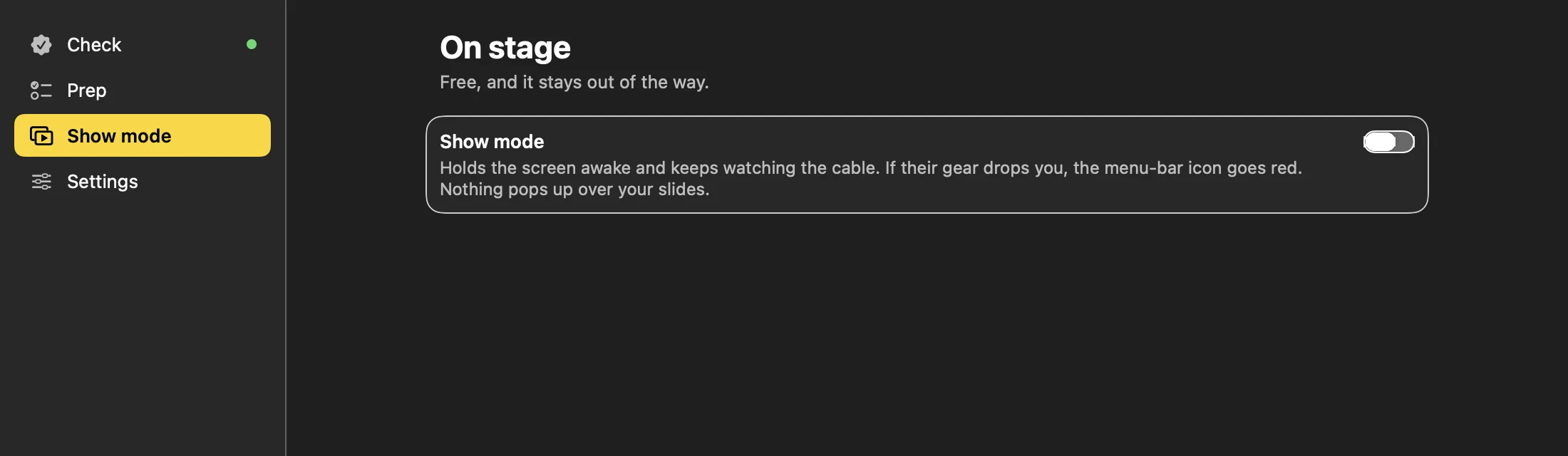
stage-check does this check for you. Before you walk on, it reads your display sleep timer, sound output, battery and chat apps and asks whether Do Not Disturb is on. On stage, Show mode holds the screen awake and keeps watching the cable, and nothing pops up over your slides. The Mac beta is coming soon.
Related
- How to connect a MacBook to a projector
- MacBook on HDMI, and the projector says no signal
- External display keeps disconnecting from your Mac
- Stop notifications popping up on the projector
- Mac screen goes to sleep during a presentation
- Presenter View shows on the projector instead of your laptop
- No sound from HDMI on a Mac
- stage-check: GO or NO-GO before you walk on stage
Sources
- Apple Support: Set up a Focus to stay on task on Macread
- Apple Support: Change Notifications settings on Macread
- Apple Support: Set sleep and wake settings for your Macread
- Apple Support: Present on a separate display in Keynote on Macread
- Apple Support: Change the sound output settings on Macread
- Apple Support: Connect to HDMI from your Macread
- man caffeinate (macOS manual page) (
man caffeinate)man - stage-check rules: pw04.soon, pw05.chat-on-screen, focus.ask (
rules/copy.en.json)local
Each web source was opened and read on 2026-11-15; a saved copy is kept with the site's research. Figures about the venue night are computed from the evidence file when the site is built.